Claude Code Commands: 26 Slash Shortcuts Most Developers Miss
A complete reference for Claude Code slash commands — session management, model switching, MCP servers, memory, plan mode, and more. With a printable quick-reference card.
TL;DR
Claude Code has over 26 built-in slash commands that most people never discover. The most useful ones: /compact to shrink a bloated context without losing thread, /plan to get Claude thinking before it touches any files, /model to switch between Sonnet and Opus mid-session, and /memory to control what Claude remembers across sessions. This guide covers all of them with practical notes on when to actually use each one.
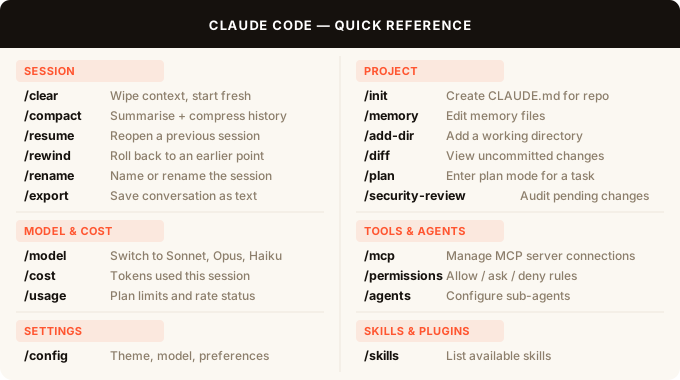
Quick reference
Session management
These commands control the conversation itself — how long it runs, what it remembers, and how you save or revisit it.
/clear
Wipes the conversation history and resets context entirely. Use this when a session has gone sideways and you want to start the same task with a clean slate. Any files Claude edited stay edited — it only clears what was said, not what was done.
/compact [instructions]
Compresses the conversation into a summary and continues from there. You can add instructions to tell it what to keep: /compact focus on the database schema changes. This is the command to reach for when you see the context bar filling up — it preserves the important bits and drops the noise.
/resume [session]
Reopens a previous conversation by ID or name. If you’ve been naming your sessions with /rename, this makes it easy to pick up long-running tasks across multiple sittings.
/rewind
Rolls the conversation back to an earlier point. Good for undoing a direction that didn’t work without having to /clear everything. Check /diff first to see what code changed before you rewind.
/rename [name]
Names or renames the current session. If you leave it blank, Claude generates a name. Naming sessions makes /resume actually useful. Get in the habit of naming anything you’ll come back to.
/export [filename]
Saves the full conversation as plain text. Useful for documenting a decision trail, sharing a debugging session with a teammate, or archiving a complex scaffolding run.
Model and cost
/model [model]
Switches to a different Claude model for the rest of the session. Options include Sonnet, Opus, and Haiku. The practical move: start heavy tasks with Opus for better reasoning, then switch to Sonnet for the implementation work. You can flip back and forth as needed.
/cost
Shows token usage for the current session — input tokens, output tokens, and approximate cost. A good check before you kick off a long agentic run, and useful for understanding which kinds of tasks burn the most tokens.
/usage
Shows your plan limits and current rate-limit status. Different from /cost, which is session-level. This is the account-level view: how much of your plan you’ve used and whether you’re near a rate limit.
/extra-usage
Enables extra usage when your standard plan limits are reached. Depending on your plan, this may extend your session beyond the usual cap.
Project and files
/init
Creates a CLAUDE.md file at the root of your repo. Claude uses this file as persistent instructions for every session in that project: coding conventions, testing commands, things to never do, architecture notes. If you’re starting a new codebase, run /init first and fill in the important context before you start building.
/memory
Opens your memory files for editing. Memory files are how Claude remembers things across separate sessions — preferences, personal context, notes on ongoing work. This command lets you see and edit what’s stored.
/add-dir [path]
Adds a directory to Claude’s working scope for the session. By default Claude works in your current directory. If you need it to access files from another part of your system without changing directories, add them here.
/diff
Opens a diff viewer for uncommitted changes, including per-turn diffs that show what Claude changed in the last step. Pair this with /rewind for a safe review-before-commit workflow.
/plan [description]
Enters plan mode. Claude thinks through the task, writes a plan, and waits for approval before touching any files. This is the right starting point for anything non-trivial — an architecture change, a refactor across many files, a new feature. The plan step costs very little and saves a lot of correction work.
/security-review
Checks pending changes for security issues before you commit. Useful after agentic runs where Claude made a lot of changes autonomously. Worth running any time you’re about to push code that handles auth, user data, or external API calls.
Tools, agents, and integrations
/mcp
Manages MCP (Model Context Protocol) server connections. MCP servers extend Claude’s capabilities with external tools — file systems, APIs, databases, web browsers. /mcp lets you see active connections, add new ones, and handle OAuth authentication.
/permissions
Manages the allow, ask, and deny rules for tool access. If Claude keeps asking permission for the same action, you can allow it here. If it’s doing something automatically that you want to approve each time, you can move it to ask mode.
/agents
Manages agent and sub-agent configurations. Claude Code can spawn sub-agents to work on parallel tasks. This command controls how those agents are configured.
/skills
Lists all available skills — both built-in skills and custom ones your team has added. Skills are reusable, nameable behaviors you can invoke with a /skill-name command. Run this to discover what’s available in your session.
/plugin
Manages Claude Code plugins. Plugins extend Claude Code’s functionality at a deeper level than MCP servers.
/reload-plugins
Reloads active plugins without restarting Claude Code. The equivalent of a hot-reload for your plugin setup — useful while developing or configuring plugins.
Appearance and settings
/config
Opens the settings panel: theme, model defaults, output style, and other preferences. The central place to configure your Claude Code environment.
/theme
Changes the color theme. Options include light, dark, and accessible variants. Shortcut for when you switch between terminal setups and the contrast is wrong.
/color [color]
Sets the prompt bar color for the current session. Useful for visually distinguishing multiple Claude Code sessions running in separate terminals.
The three commands worth using every day
Most people use maybe four or five of these. If you’re going to add anything to your workflow, start here:
/plan before anything big. Takes 30 seconds and prevents an hour of cleanup.
/compact when context bloats. You’ll know it’s time when responses get slower or Claude starts forgetting things from earlier in the session.
/cost on long agentic runs. Keeps you from burning through your plan limit on a single large task without realizing it.
Everything else is situational — but now you know it exists.
FAQ
What is Claude Code? Claude Code is Anthropic’s official CLI for Claude. It runs in your terminal and can read, write, and edit files in your project, run shell commands, and work through complex multi-step tasks autonomously. It’s available as a CLI, a desktop app, and IDE extensions for VS Code and JetBrains.
Are slash commands the same as prompts? No. Slash commands are built-in controls for Claude Code’s behavior — they affect the session, model, memory, and tools. Prompts are what you type to describe a task. Slash commands are more like keyboard shortcuts than instructions.
How do I see all available commands?
Type / in Claude Code and you’ll get an autocomplete list of all built-in commands plus any custom skills available in your session. /skills shows the full list of custom skills specifically.
Can I create my own slash commands? Yes, through the skills system. Custom skills let you define reusable behaviors that your team can invoke with a named command. Skills can include tools, sub-agent configurations, and step-by-step instructions.
What is /plan mode? Plan mode is a state where Claude thinks through a task and presents a written plan before doing anything. You approve the plan, then Claude executes. It’s useful for any change that touches multiple files or has real consequences — the plan step is cheap, the cleanup if something goes wrong is not.
What’s the difference between /cost and /usage?
/cost shows tokens used in the current session. /usage shows your account-level plan consumption and rate-limit status. Use /cost to understand a specific task’s footprint, /usage to track where you are against your monthly plan.
Does /clear delete my files?
No. /clear only clears the conversation history. Any files Claude created or edited during the session stay exactly as they are. If you want to undo file changes, use /rewind or git to restore.