GitHub Copilot vs Cursor: Which AI Coding Tool Wins?
GitHub Copilot vs Cursor compared side by side. See which AI coding tool is faster, smarter, and worth paying for in 2026.
TL;DR
Copilot lives inside any editor you already use and is great for line-by-line code suggestions. Cursor is a full editor built around AI, and it does a lot more than suggest the next line. If you write code every day and want the fastest autocomplete, Copilot is fine. If you want an AI that can read your whole project and make big changes at once, Cursor is worth the switch.
Quick comparison
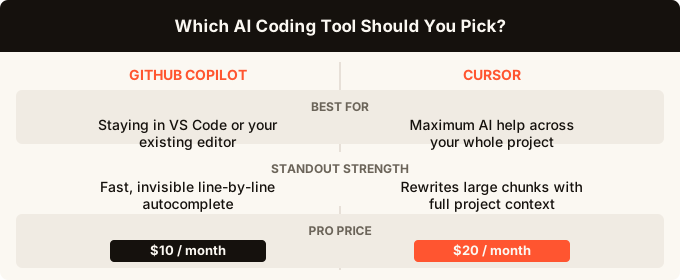
| GitHub Copilot | Cursor | |
|---|---|---|
| What it is | Plugin you add to your editor | A standalone editor with AI built in |
| Works in your current editor | Yes | No (it is its own editor) |
| Line-by-line autocomplete | Yes | Yes |
| Understands your whole project | Partial | Yes |
| Can rewrite large chunks at once | Limited | Yes |
| Chat that references your files | Yes | Yes |
| Built-in terminal AI | No | Yes |
| Price | Free tier, $10/month pro | Free tier, $20/month pro |
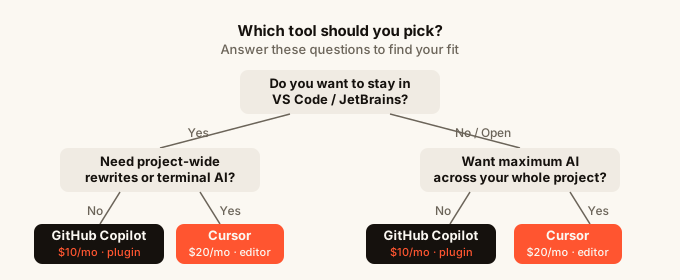
| Best for | Developers who want to stay in VS Code | Developers who want maximum AI help |
What is GitHub Copilot?
GitHub Copilot is a plugin (an add-on you install inside an existing code editor) made by GitHub, which is owned by Microsoft. You install it in editors like VS Code, and it shows up as suggestions that appear as you type.
The core idea is simple: start typing a function, and Copilot predicts the rest. It is fast, it is right often enough to save time, and it feels invisible once you get used to it. You keep your existing setup and just get smarter autocomplete.
Copilot also has a chat panel where you can ask questions about code, explain what something does, or ask it to write a test. The chat has gotten better in recent versions and can now reference specific files in your project.
The big limitation is that Copilot is still mostly working on what is in front of it. It is not great at understanding how twenty files in your project connect together and changing all of them at once.
What is Cursor?
Cursor is a full code editor, built on top of VS Code (the free editor from Microsoft), with AI woven into every part of it. You download Cursor and use it instead of VS Code, not alongside it.
Because the AI is part of the editor itself rather than a bolt-on plugin, Cursor can do things that feel genuinely different. You can highlight a block of code and tell it what to change in plain English. You can open a chat that knows about your entire project and ask it to find the bug or write the feature, and it will make changes across multiple files at once.
Cursor also has a mode called “Agent” where you describe a goal and it works through a list of tasks on its own, reading files, making edits, and checking its own work. It is closer to having a junior developer on the team than having a smarter autocomplete.
If you want to understand how Cursor fits into the broader world of AI coding tools, the what is Cursor AI article is a good place to start.
Head-to-head: GitHub Copilot vs Cursor
Autocomplete
Both tools suggest code as you type. Copilot has been doing this for longer and is slightly faster. Cursor’s autocomplete is good too, but if all you want is that quick “tab to accept” feeling while you work, Copilot matches it.
Advantage: roughly even, slight edge to Copilot for speed.
Understanding your whole project
This is where the gap opens up. Cursor lets you add your entire codebase to the context (the information the AI can see at once). It can read all your files, understand how they relate, and give answers or make changes that actually make sense across the whole project.
Copilot’s chat can reference files you tell it about, but it is not as thorough about seeing the big picture on its own.
Advantage: Cursor.
Making large changes
Cursor’s “Composer” mode lets you describe a feature in plain English and watch it create or edit multiple files at the same time. You review the proposed changes, accept what you want, and reject what you do not. This is one of the biggest practical differences between the two tools.
Copilot will suggest completions and can write blocks of code in chat, but applying changes across many files at once is not its strength.
Advantage: Cursor, clearly.
Chat experience
Both tools have a chat panel. Copilot’s chat is clean and quick, good for short questions like “explain this function” or “write a unit test for this.” Cursor’s chat is more powerful because it can pull in context from across your project automatically and make edits directly in the files rather than just showing you code to copy.
Advantage: Cursor for complex tasks, Copilot for quick questions.
Staying in your existing editor
If you have spent years setting up VS Code exactly how you like it, with specific themes, keyboard shortcuts, and plugins, switching to a new editor feels like a chore. Copilot lets you keep everything as-is and just adds AI on top.
Cursor is built on VS Code and imports your existing settings and extensions, so the move is easier than it sounds. But it is still a different app, and things are occasionally not quite the same.
Advantage: Copilot if this matters to you.
Price
Copilot costs $10 per month for individuals. There is a free tier with limited completions. Cursor costs $20 per month for the pro plan. Both have free tiers worth trying before paying anything.
Advantage: Copilot on price. Cursor on value if you use the advanced features.

How each one handles AI models
Both tools let you pick which AI model (the underlying engine that generates the code suggestions) you use. Copilot uses models from OpenAI and has added options from other providers too. Cursor gives you access to several models and lets you switch between them depending on the task.
This is worth knowing because different models are better at different things. Some are faster, some are smarter at reasoning through hard problems. Having the choice is useful.
Neither tool locks you in to a single model, which is good.
Who should use Copilot?
Copilot is the right choice if you write code professionally, you are happy in your current editor, and you want AI help without changing your workflow. It is also the natural first step if you are on a team that already uses GitHub (the service where developers store and share code) for everything, since Copilot plugs in neatly.
It is also the better option for newer coders who do not want to invest in learning a more powerful tool yet. The learning curve is basically zero.
Who should use Cursor?
Cursor is for people who want to get the most out of AI coding help and are willing to use a different editor to get it. If you are building a project by yourself or in a small team, and you want to move fast, Cursor’s ability to understand the full project and make big changes at once saves real time.
It is also a strong choice if you are doing the kind of building described in what is vibe coding, where you are describing what you want in plain English and letting the AI do most of the work.
A lot of people use Cursor alongside dedicated AI builders. If you are making a mobile app or a web tool and you do not want to write code at all, something like omg.dev takes a different approach entirely, letting you build and ship real apps from your phone without touching an editor.
How they compare to other AI tools
If you are also weighing up Cursor against Windsurf, another AI-focused editor, the Cursor vs Windsurf comparison covers that in detail. And if you want a broader look at where all the top AI editors sit, best AI code editors 2026 is worth reading.
For people who are not developers but want to build something, the comparison between Copilot and Cursor might be the wrong framing altogether. Both tools assume you can read and write code. If that is not you, how to build an app without coding is a more useful starting point.
The honest verdict
Copilot is a polished tool that does one thing well: it makes writing code faster by predicting what you are about to type. If that is what you need, it delivers.
Cursor is a bigger bet. You switch editors, pay more, and spend a bit of time learning how it works. In return you get something that feels less like autocomplete and more like a collaborator. For solo builders working on real projects, that trade-off is usually worth it.
The people who are happiest with Copilot are professionals at big companies who cannot change their editor and want a reliable, unobtrusive tool. The people who are happiest with Cursor are builders who want to ship things fast and are happy to let AI do more of the heavy lifting.
Start with the free tier of whichever feels right. Both are good enough at the basics that you will know within a week whether you want more.
FAQ
Is GitHub Copilot or Cursor better for beginners?
Copilot is easier to start with because you install it in an editor you may already use and it just works. Cursor has a steeper learning curve because it has more features to understand. That said, Cursor’s chat is actually very helpful for beginners who want to ask questions about code in plain English.
Can I use Cursor and Copilot at the same time?
Technically you can install the Copilot plugin inside Cursor, but most people turn one off because having two AI tools suggesting things at the same time creates conflicts. Pick one and stick with it.
Does Cursor replace VS Code?
Cursor is built on VS Code and looks almost identical. It imports your settings and most of your plugins. For most people it is a drop-in replacement, but because it is a separate application, some enterprise IT setups do not allow it.
Which is better for large codebases with many files?
Cursor is better for large projects. Its ability to load your whole project into context and make changes across multiple files at once is specifically designed for this. Copilot works best on the file you have open.
Is the $20 per month price for Cursor worth it?
If you are coding most days and using the multi-file editing and agent features regularly, yes. If you mostly want autocomplete, Copilot at $10 is fine. Try Cursor’s free tier for a couple of weeks on a real project before paying.
How does GitHub Copilot vs Cursor compare on privacy?
Both tools send your code to external servers to generate suggestions. Both have settings to limit what gets sent. If you work with sensitive code (medical records, financial data), read each tool’s privacy policy before using either. Neither is intended for code you cannot share with a third-party service.
Are there other tools in this space worth knowing about?
Yes. Cursor vs Claude Code compares Cursor to Claude Code, which takes a terminal-based approach. And the best AI app builder 2026 article covers tools for people who want to build apps without writing much code at all.