What Is Cursor AI? The Code Editor Explained
Cursor AI is a code editor built for AI-assisted coding. Learn what it is, how Tab autocomplete and Composer work, and who should actually use it.
TL;DR
Cursor is a code editor (the app you type code into) with AI baked in at every level. It looks almost identical to VS Code, which millions of developers already use, but adds smart autocomplete, an AI chat panel, and a multi-file editing mode called Composer. You pick which AI model powers it. It is aimed at people who already write code or are learning to, not at people who want to skip coding entirely.
What is Cursor AI?
Cursor is a desktop app you install on your computer. It is where you write and edit code. Think of it like Microsoft Word, but for code instead of essays, and with an assistant sitting next to you suggesting the next sentence.
It was built by a company called Anysphere and launched publicly in 2023. It spread fast among developers because it felt like VS Code (the most popular code editor in the world) with AI that was actually good. If you have used VS Code before, opening Cursor for the first time feels like coming home.
The short version: Cursor does not build apps for you from scratch. It helps you write and edit code faster. That is an important distinction, and we will come back to it.
How Cursor works
It starts with VS Code
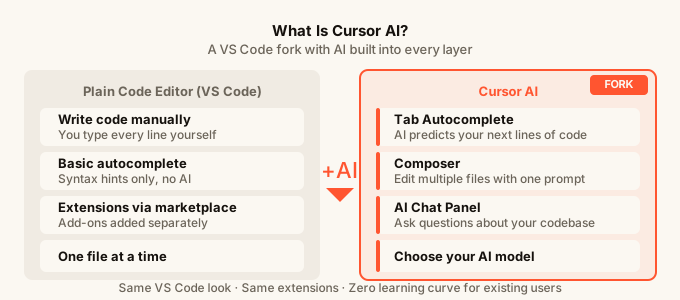
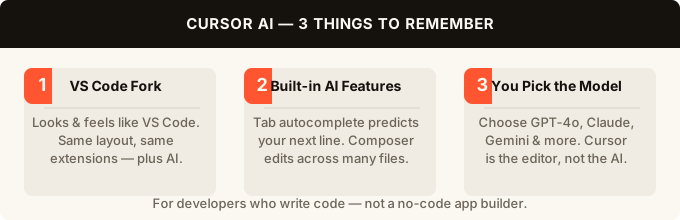
VS Code is a free code editor made by Microsoft. Cursor is what is called a fork, meaning the Cursor team took VS Code’s open source code (code that anyone can read and build on) and added their own AI features on top. The result looks almost identical. Same file explorer on the left, same terminal at the bottom, same extensions (add-ons that give you extra features).
This matters for one reason: if you or someone on your team already knows VS Code, there is almost no learning curve. You just get more AI on top of what you already know.
Tab autocomplete
The feature most people notice first is Tab autocomplete. As you type, Cursor watches what you are writing and predicts what comes next. Press Tab and it fills it in.
This sounds small. It is not. Cursor’s autocomplete is trained to understand context across your whole project, not just the current line. It can suggest an entire function (a reusable block of code that does one job) based on a comment you wrote, or complete a block of code that matches a pattern it saw earlier in the same file.
Developers report writing code noticeably faster once they get used to it. The suggestion appears as grey text before you accept it, so you always see what you are about to add before it goes in.
Cursor Chat
On the right side of the screen there is a chat panel. You can highlight a piece of code and ask questions about it: “why does this break when the list is empty?” or “rewrite this to be easier to read.” Cursor answers in context, meaning it knows what file you are looking at.
This is different from copying code into ChatGPT and pasting back. The connection to your actual files is live. You can ask it to make a change and it will do it directly, or you can accept and reject its suggestions line by line.
Composer (multi-file editing)
Composer is Cursor’s bigger-picture mode. Instead of editing one file at a time, you describe a change you want to make across your whole project and Cursor figures out which files need to change and how.
Say you want to add a new page to your app, or rename a feature that touches ten different files. In Composer, you describe what you want in plain English, and Cursor writes a plan, shows you what it will change, and waits for your approval before touching anything.
This is where Cursor gets genuinely powerful for people with some coding knowledge. You are still in the driver’s seat, but you are directing the AI rather than typing every line yourself.
You choose the AI model
Cursor does not tie you to one AI brain. You can switch between different large language models (the AI systems that generate the suggestions and answers) depending on what you are doing. Some models are better at reasoning through tricky problems. Others are faster and cheaper for quick edits.
You do not need to know much about the models to use Cursor. Most people pick one and leave it. But having the choice means you are not stuck if a better option comes along.
What Cursor is good at
Cursor is good at making experienced developers faster. If you already know roughly what you want to build and you know how to read code, Cursor cuts a lot of the repetitive typing. It is also a genuinely useful learning tool because you can ask it to explain code you do not understand, right there in the editor.
It works well for longer-running projects where you keep coming back to the same codebase (all the files that make up a project). Because Cursor can read your whole project, it gives smarter suggestions the more context it has.
For comparison, tools focused on autocomplete in specific environments, like GitHub Copilot vs Cursor shows what the tradeoffs look like. And if you want to understand how Cursor stacks up against another popular AI coding tool, Cursor vs Claude Code is worth a read.
What Cursor is not good at
Cursor does not build apps from scratch for you. You type a sentence and get a finished product? That is not what Cursor does. It makes writing code faster, but you still need to write code.
If you have never written code before, Cursor will feel overwhelming. The editor is full of files, folders, syntax (the grammar rules of a programming language), and error messages. The AI helps with all of those, but it does not hide them from you.
There is also the setup cost. You install it on your computer, connect it to your project, choose your model, and learn the keyboard shortcuts. That is not a huge lift, but it is more than opening a browser tab.
If you want to build a working app without any of that, tools like omg.dev take a different approach. You describe what you want, the AI designs and builds it, and your app is live with no code editor needed. It is built to work from your phone. The tradeoff is that you have less control over the details than you would in Cursor.
Understanding when to use each type of tool is half the battle. Our guide on how to build an app without coding covers the full range of options.
Who should use Cursor
Cursor is worth your time if you fit into one of these groups.
You are a developer who already uses VS Code and you want to move faster. Cursor is a direct upgrade with almost no friction.
You are learning to code and you want a tutor sitting next to you while you work. Cursor will explain errors, suggest fixes, and answer questions without you leaving the editor.
You are a technical founder or solo developer building something serious. You want to ship faster but you also want full control over your code, not a black box that generates it for you.
If you are a complete beginner who just wants to ship something, Cursor is probably not your starting point. You are better off with an AI builder that hides the code entirely until you are ready for it.

Cursor vs other AI coding tools
The AI coding space has several different types of tools, and it helps to know which category each one sits in.
Cursor sits in the “AI code editor” category alongside tools like Windsurf. These are apps you install, they work on your existing code, and they assume you know or are learning to code. If you want to compare those two directly, Cursor vs Windsurf breaks it down.
Then there are “AI app builders” like Lovable, Bolt, and omg.dev. These let you describe an app in plain English and generate the whole thing. No editor, no file system to manage. For a full breakdown of that category, the best AI app builder 2026 guide is a good place to start.
The key question is: do you want to write and edit code with AI help, or do you want AI to write the code so you never have to? Cursor is for the first. App builders are for the second.
Finally, there are AI assistants you add on top of editors you already have. GitHub Copilot is the most famous example. These are lighter-weight than Cursor and easier to try, but they do not go as deep.
For a wider view of the editor landscape, best AI code editors 2026 covers all the main options in one place.
Pricing
Cursor has a free tier with a limited number of AI uses per month. The paid plan (called Pro) gives you more usage and access to the more powerful models. Pricing has changed since launch so check their website for current numbers. Most developers who use it seriously end up on the paid plan because the free tier runs out fast.
Key features at a glance
| Feature | What it does |
|---|---|
| Tab autocomplete | Predicts and fills in your next line or block of code as you type |
| Cursor Chat | Ask questions about your code, get answers in context |
| Composer | Describe a change across multiple files, Cursor plans and executes it |
| Model choice | Switch between AI models depending on the task |
| VS Code base | Same look and feel as the world’s most popular code editor |
| Project-wide context | Cursor reads your whole codebase to give smarter suggestions |
FAQ
Is Cursor AI free? Cursor has a free plan with limited AI usage each month. When you hit the limit, suggestions stop until the next cycle or you upgrade. The paid Pro plan gives you much more usage and access to the strongest AI models.
Do I need to know how to code to use Cursor? You do not need to be an expert, but you need to be comfortable looking at code. Cursor helps you write and understand code faster, but it does not hide the code from you. Complete beginners usually find no-code app builders easier to start with.
What is the difference between Cursor and GitHub Copilot? Both add AI autocomplete to a code editor, but Cursor goes further. It has a full chat panel, multi-file Composer mode, and lets you pick your AI model. Copilot is lighter and plugs into editors you already have. Cursor is a whole editor replacement.
What does “VS Code fork” mean? It means the Cursor team started with VS Code’s code as their foundation and built on top of it. The result looks and works like VS Code but with extra AI features added. Most VS Code extensions work in Cursor without any changes.
Can Cursor build an entire app for me? Cursor can help you write the code for an entire app, especially with Composer for multi-file projects. But you are still writing code, just with AI helping at every step. It is not the same as describing an app and having it built for you automatically, which is what AI app builders do.
Is Cursor good for learning to code? Yes, it is one of the better tools for learners who want to understand what they are building. You can ask it to explain any piece of code in plain English, ask why something is broken, and get suggested fixes with explanations. Just expect a steeper start than a visual no-code tool.
How does Cursor compare to just using ChatGPT for coding help? ChatGPT does not connect to your actual project files. You paste code in, get suggestions back, and paste them back yourself. Cursor’s AI is wired directly into your editor and can read all your files, apply changes for you, and keep track of what you are working on. For serious coding work, that live connection makes a big difference.